Adjust Image Colors Online for Free
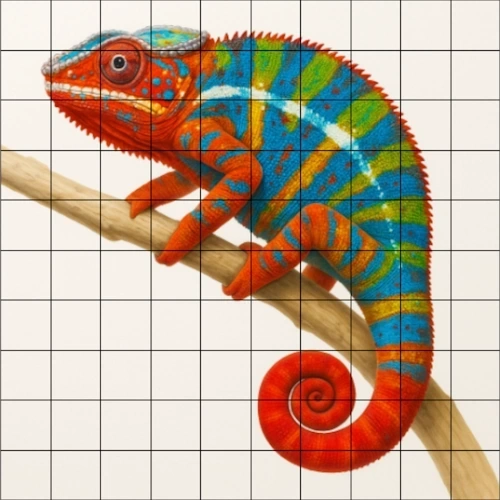
Adjust the saturation, temperature, tint, hue, vibrance, and gamma of your photos manually in your browser. Using simple sliders, you can correct color intencity, enhance dull photos, or create monochrome photos. The sliders operate in real time so you can see the changes as you move them and easily experiment with color adjustmens as you wish.
Saturation
The saturation slider lets you make the image less or more colorful. Move the slider to the right, image becomes monochrome. Simply put: it converts images to black and white. If your image has weak colors and you want it to be more colorful, move the slider to the right.
Temperature
The temperature slider adjusts the warmth or coolness of an image. Helps correct photos that appear too blue or too yellow because of lighting conditions.
- For example, if you want a photo of a room to look warmer and more cozy, move the slider toward the right, away from cool blue tones. This adds warmth and removes the cold feeling from the image.
- If you take a photo of the sky and it looks too warm or slightly orange, move the slider toward the left, toward cooler blue tones. This removes the unwanted warmth and restores the natural color of the sky.
Tint
The tint slider shifts colors between green and magenta. It is commonly used to correct color casts caused by artificial lighting or camera sensors. Adjusting tint helps restore natural skin tones and accurate color balance.
Hue
The hue slider rotates the entire color spectrum of the image. This changes all colors while preserving brightness and contrast. This control is useful for creative color effects, color grading, or transforming the mood of a photo.
Vibrance
The vibrance slider increases the intensity of less saturated colors while protecting already strong colors and skin tones.
- Increases weak colors more.
- Protects already strong colors.
- Preserves natural skin tones.
- Avoids the problem where faces become orange or red when saturation is increased.
Gamma
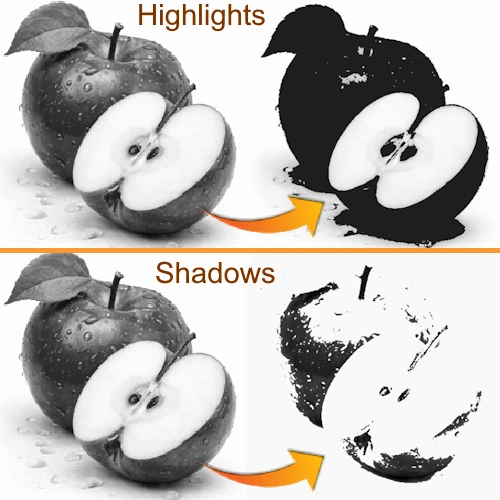
The gamma slider adjusts the midtone brightness of the image without strongly affecting the darkest shadows or brightest highlights. This helps brighten dark photos, improve visibility in shadows, and balance overall exposure.